
Menu Close

STELLA-1.2

The STELLA-1.2 Base Platform is a modular foundation for monitoring, featuring GPS positioning, onboard data logging, real-time display, and audible feedback (beeper) for user responsiveness. This versatile computing core accepts interchangeable sensor module plugins, allowing users to configure the instrument for different applications by simply swapping sensor packages in and out. Following our soft launch beta program, we incorporated extensive user testing and feedback to create the official STELLA-1.2 with redesigned 3D-printed housing featuring improved manufacturing tolerances, enhanced structural integrity, and better environmental protection for field deployments.

Important for beta users: The official STELLA-1.2 and plugins require a new 3D printed housing and is not compatible with beta sensor modules. A conversion video guides beta testers through rewiring for the new platform.

Modules

STELLA-RS (Remote Sensing)

STELLA-Lab_Spec (Excitation Spectrometer) **coming soon**

STELLA-AA (Air Analyzer) **coming soon**

STELLA-1.2 Highlights

Elisa Mae with STELLA backdrop

At Garden City Community College in Kansas, Assistant Professor Elisa Mai integrated STELLA spectrometers into …

Garden City Community College (GCCC) students gather data in an irrigated Kansas corn field. Photo courtesy of GCCC.

Garden City Community College (GCCC) in Garden City, Kansas has successfully concluded the first offering …

Dr. Petya Campbell taking notes during a STELLA field test

Petya in the Field

Watch Dr. Petya Campbell, a NASA Goddard research scientist with over 20 years of field …

STELLA-1.2 Base Platform

Commercial Off The Shelf (COTS) Parts

LineDescriptionQuantity eachManufacturer/ VendorManufacturer PNUnit Price
1Permaproto board, full size1Adafruit16067
2Feather ESP32-S31Adafruit547718
3rotary encoder with knob1Adafruit3775
4POPO power button switch1DigikeyCW181-ND2
5Eyespi breakout board1Adafruit56132
6Eyespi cable, 100mm1Adafruit52391
7Cap touch TFT display1Adafruit209030
8SD card module1Adafruit46824
98GB micro SD card1Adafruit129410
10Ultimate GPS breakout1Adafruit544030
110.1uF capacitor1DigikeyC315C104M5U5TA73030
12PCF8523 RTC clock module1Adafruit51895
1310kΩ resistor3DigikeyRNF18FTD10K0CT-ND0
14CR1220 coin cell battery2Adafruit3802
15TPS61023 5V 1A boost1Adafruit46544
16Qwiic cable 100mm1Adafruit42101
172200 mAh cylindrical battery (alt bat)0Adafruit178110
184400 mAh battery pack (alt bat)0Adafruit35420
196600 mAh battery pack (first choice bat)1Adafruit35325
20magnet connector pair, RA, 4 positions1Adafruit53587
21magnet connector pair, RA, 3 positions1Adafruit53606
22USB C cable1Digikey1568-CAB-16905-ND5
23Qwiic buzzer1Digikey1568-24474-ND11
241/4-20 Hex Nut 7/16 wide x 7/32 thick1McMaster Carr95462A0290.09
25Purse Strap1Amazon10
Total185

3D Printed Parts

3D prints for STELLA-12 base module including RS module
LineDescriptionQuantity
1Lower housing1
2Upper Housing1
3Tail lights1
4Rec window1
5GPS window1
6clock spacer1
7swing door1
8Qwiic Buzzer retainer1
9Assembly fixture1
10magnet coupler alignment fixture for main body w flats2
11SD Card Alignment1
12GPS card alignment1

Follow along with the STELLA-1.2 Build Video. 

1. Setting up Microcontroller and Testing - Programming

Initial Setup

  1. Extract Files: Unzip the STELLA-1.2 file to access its contents.

  2. Enter Bootloader Mode:

    • Hold down the BOOT button on the microprocessor
    • Connect the USB-C data cable from your computer to the microprocessor
    • A drive labeled FEATHERBOOT should appear in your file explorer
    • If the drive doesn’t appear: Press the RESET button twice quickly, then press the BOOT button
  3. Install Firmware:

    • Navigate to the UF2 folder
    • Drag and drop the .uf2 file onto the FEATHERBOOT drive
    • Wait for the copy to complete
    • The FEATHERBOOT drive will automatically eject and be replaced by CIRCUITPY
  4. Install Software:

    • Open the STELLA-1.2-code-and-libraries folder
    • Drag and drop the following items onto the CIRCUITPY drive:
      • code.py file
      • setting.toml file
      • configuration_files folder
      • lib folder
      • software_modules folder

Testing the Microcontroller

Prerequisites:

  • Microcontroller connected via USB-C data cable
  • Mu Editor installed and open

Test 1: Unique Identifier

  1. In Mu Editor, click Serial at the top
  2. Navigate to: S12_test_codes → main unit test codes → A0._microcontroller_unique_identifier
  3. Drag and drop code.py into the CIRCUITPY drive
  4. Check the serial output in Mu Editor for the Unique Identifier

Test 2: Blink Indicator

  1. Navigate to: S12_test_codes → main unit test codes → A1._microcontroller_blink_indicator
  2. Drag and drop code.py into the CIRCUITPY drive
  3. Verify the microprocessor LED is blinking

Note: Each time you drag a new code.py file to the CIRCUITPY drive, it will replace the previous version and automatically restart the microcontroller.

LineDescriptionFunction / instructionsMC pinFront/ RearLocation 1Location 2color/ note
13D printcoupler installation fixturemagnetic coupler alignment fixture
23D printclock spacerclock holder
3soldering toolsuse SAC305 alloy solderlead-free solder (SAC 305 alloy, 0.020” = 0.5mm diameter), safety glasses, fume exhauster, iron tip size: 1.5-2.0mm, iron temperature 290ºC/550ºF
4cut tracesbus traces

Rear

1 AB, BC, CD

2 AB, BC, CD

cut traces with a sharp knife, remove segment
5cut tracesanalog traces

Rear

1 Hi, iJ

2 Hi, iJ

cut traces with a sharp knife, remove segment
6magnet coupler 4 pos4 pin, flat faceFrontuse alignment fixture labelled “Flats”
7magnet coupler 3 pos3 pin, flat faceFrontuse alignment fixture labelled “Flats”
8test before installmicrocontrollerTEST A. microcontroller: Install CircuitPython by clicking reset twice in the specified cadence. Then copy the UF2 file onto the FEATHERBOOt
drive. Connect to Mu Editor, ctrl-c, ctrl-d, checkoutputs.
9install pins on microcontroller: use
two layers of protoboard as a fixture
NOTE: install the header pins long ends from the bottom of the microcontroller board to the top, sticking out about 4mm above the top of the microcontroller board, with the plastic spacer up against the bottom of the microcontroller board. Neatness is important: the sticking out portion of the pins will be used to connect to later accessories, so keeping the upper portion of the pin free of solder is important. Do not trim the pins, even after installation is complete.
10install microcontroller
on rear of main board.
install microcontroller on rear of main board

Rear

C44-C59

i44-i55

11groundmicrocontroller groundGNDFrontA56GND (-) below A
GND
12powermicrocontroller 3V3 out3VFrontA573V (+) below A
+3.3V
13SCLmicrocontroller SCLSCLFrontJ45SCL (-) above J
i2c Serial Clock
14SDAmicrocontroller SDASDAFrontJ44SDA (+) above J

i2c Serial Data

15bus coupler wiresGNDFrontB2 short to B1GND (-) below 2A
GND
16bus coupler wires3VFrontA2 short to A13V (+) below 2A
+3.3V
17bus coupler wiresI2C_SDAFrontE1SDA (+) above 2J

i2c Serial Data

18bus coupler wiresI2C_SCLFrontC2 short to C1SCL (-) above 2J
i2c Serial Clock
19clock batteryinsert clock battery
20test bus comsQT connect test/ clock setclock moduleqwiic connectorTEST B. clock set

Hardware Setup

  1. Connect the RTC clock module to the microprocessor using the Qwiic cable
  2. Connect the microprocessor to your computer via USB-C data cable

Testing and Configuration

I2C Bus Scan

  1. Open Serial in Mu Editor
  2. Navigate to folder: B0._i2c_bus_scan
  3. Drag and drop code.py onto the CIRCUITPY drive
  4. Check the serial output in Mu Editor for the I2C device response

Real-Time Clock Setup

  1. Navigate to folder: B1._real_time_clock_and_clock_set
  2. Drag and drop code.py onto the CIRCUITPY drive
  3. Go to time.is/utc to get the current UTC time
  4. Add approximately 5 seconds to the time to allow buffer for entering all prompts
  5. In Mu Editor’s serial window, enter the adjusted date and time in UTC format when prompted
LineDescriptionFunction / instructionsMC pinFront/ RearLocation 1Location 2color/ note
21install rotary encoderrotary encoder

Rear

H37, H39

D37, D38, D39

trim off the bottoms of the mounting ears, then
install the encoder on the rear of the board
22rotary encoderGNDFrontA38GND (-) below A
GND
23rotary encoderGNDFrontF35GND (-) below A
GND
24rotary encoderGNDFronti35i37
GND
25rotary encoderA4FrontB39B51
rotary line B
26rotary encoderA3FrontB37B52
rotary line A
27rotary encoderA2Fronti39B53
pushbutton switch
28test rotary encoderrotary encoder testTEST C. rotary encoder
29solder pins onto eyespiinstructions: Use breadboard as a fixture
30install display eyespi breakout boardtape the eyespi board in placeFrontD24-32G24-32connector latch bar [black] towards J
31trim pins
32display breakout3VFrontA243V (+) below A
+3.3V
33display breakoutGNDFrontA26GND (-) below A
GND
34display breakoutSCLFrontJ27SCL (-) above J
i2c Serial Clock
35display breakoutSDAFrontJ28SDA (+) above J

i2c Serial Data

36display breakoutTFT_CSD12FrontA32J51
TFT_CS
37display breakoutTFT_D/CD11FrontB30J50
TFT_D/C
38display breakoutMISOMISOFrontA29A47
MISO
39display breakoutMOSIMOSIFrontA28A48
MOSI
40display breakoutSCKSCKFrontA27A49
SCK
41modify displayclose jumpers on center back of display (not at the edge vias)IM1, IM2, IM3Do Not close IM0
42test displayTEST D. display
43test touchscreenTEST E. touch screen

Rotary Encoder

  1. Open Serial in Mu Editor
  2. Navigate to folder: C._rotary_encoder
  3. Drag and drop code.py onto the CIRCUITPY drive
  4. Twist and push the rotary encoder and observe the results in the serial output

Display Testing

Hardware Setup: Connect the screen to the EYESPI module using the cable

TFT Display

  1. Navigate to folder: D._2.8in_tft_display
  2. Drag and drop code.py onto the CIRCUITPY drive
  3. Check the display screen for visual output

Capacitive Touch Screen

  1. Open Serial in Mu Editor
  2. Navigate to folder: E._capacitive_touch_screen
  3. Drag and drop code.py onto the CIRCUITPY drive
  4. Tap on the display with your finger and observe touch coordinates in the serial output

Note: Each test replaces the previous code.py file on the CIRCUITPY drive and automatically restarts the microcontroller.

LineDescriptionFunction / instructionsMC pinFront/ RearLocation 1Location 2color/ note
44install boost pinspins only, 4 positionsFrontG17-20-pins
45install resistor10kΩ resistor (not polarized)FrontH20H23brown-black-orange, enable pull-down
46install resistor10kΩ resistor (not polarized)FrontH16H19brown-black-orange, divider high
47install resistor10kΩ resistor (not polarized)FrontG13G16brown-black-orange, divider low
48boost GNDGND (leave some slack to make room for the clock module spacer)FrontF13GND (-) below A
GND
49boost GNDGNDFrontJ13J18
GND
50boost GNDGNDFronti18i23
GND
51boost enable5V boost enableD10FrontJ20J49
5V enable
52boost 5 monitor5V/2 monitorA1Fronti16B54
5V monitor at 2.5V
53Vbat distributionVbatVbatFrontJ12J55
Vbat, unregulated lithium battery output
54Vbat supply to boostVbatVbatFronti12J17
Vbat, unregulated lithium battery output
55boost 5V out5V powerFrontJ2, J1J19
5V
56install boost moduleboost moduleFrontG17-20-components up, body towards J
57test 5V power5V testTEST F. 5V boost (connect LiPo battery for test)
58cut tracedisable clock LEDfront of the clock module
59clock header pinson front of board, use breadboard as fixture
60install clock moduleinstall clock module on printed spacerFrontB16-20-on printed spacer, battery up, body towards J
61clockGNDFrontA19GND (-) below A
GND
62clock3VFrontA203V (+) below A
+3.3V
63clockSCL, run under spacerFrontA18SCL (-) above J
i2c Serial Clock
64clockSDA, run under spacerFrontA17SDA (+) above J
i2c Serial Data
65test clockclock testrepeat TEST B. clock set
66analog inputAnalog input 0A0Fronti2, i1B55Analog input 0
67analog inout testanalog input testTEST

5V Boost Converter

  1. Open Serial in Mu Editor
  2. Navigate to folder: F0._5V_boost
  3. Drag and drop code.py onto the CIRCUITPY drive
  4. Check the serial output for results

Analog Input

  1. Open Serial in Mu Editor
  2. Navigate to folder: F1._analog_in
  3. Drag and drop code.py onto the CIRCUITPY drive
  4. Check the serial output for results

RTC Clock Verification (Post-Soldering)

After soldering the clock module:

  1. Repeat Test 1 (I2C Bus Scan) and Test 2 (Real-Time Clock Setup) from the RTC Clock Module Setup section to verify proper installation. 

Note: If the battery was installed and you already set the clock you should not need to reset the time. Just verify that it is working. 

LineDescriptionFunction / instructionsMC pinFront/ RearLocation 1Location 2color/ note
68SD card pinsinstall pins, 9 positions

Rear

B3-B11

69GPS pinsinstall pins, 9 positions

Rear

H3-H11

70trim pinstrim pins
71SD card power3V3VFrontD33V (+) below A
+3.3V
72GPS enableGPS enableFrontE3F10
GPS Enable
73SD card & GPS groundGNDGNDFrontD4GND (-) below A
GND
74GPS groundGNDFrontE4F5
GND
75GPS powerVbatFrontG4G12
Vbat, unregulated lithium battery
76GPS power noise filtercapacitor 0.1μF (not polarized)Fronti4i5component
77SD card reader spiSCKSCKFrontD5B27
SCK
78SD card reader spiMOSIMOSIFrontD7B28
MOSI
79SD card reader spiMISOMISOFrontD6B29
MISO
80SD card reader spiSD_CSA5FrontD8A50
SD_CS
81GPS module uartTX0 to RXinTXFrontF6B45
TX0 to RXin
82GPS module uartRX0 from TXoutRXFrontF7B46
RX0 from TXout
83install SD card readerSD Card

Rear

B3-B11

on rear, SD card socket visible, body towards A
84test SD card readerSD card testTEST G. sdcard
85GPS module

Rear

H3-H11

on rear, square body unit visible, body towards J
86test GPSTEST H. GPS (connect LiPo battery for test)
87power control3V system regulator enable / disableEnFrontJ54B43
3.3V Supply Enable
88power switchswitch

Rear

A43

GND (-) below A43

trim solder joints at B45, B46, and A47 flush to board, then install switch with body parallel to the board edge, with body towards A60
89test power controlTEST: unit should cycle off on alternate click of
power button.
90test systemTEST

SD Card

  1. Open Serial in Mu Editor
  2. Navigate to folder: G._sdcard
  3. Drag and drop code.py onto the CIRCUITPY drive
  4. Check the serial output for results

GPS Module

  1. Open Serial in Mu Editor
  2. Navigate to folder: H._GPS
  3. Drag and drop code.py onto the CIRCUITPY drive
  4. Check the serial output for results

Final Setup: Install Main STELLA Code

  1. Navigate back to the STELLA-1.2-code-and-libraries folder
  2. Drag and drop code.py onto the CIRCUITPY drive
  3. Coding installation is now complete

Final Hardware Test: Power Button

  1. Test the power button by cycling the power on and off
  2. Verify the button is working properly

Congratulations! You now have a fully functional STELLA-1.2 Base module.

STELLA-1.2 Operation - Indicatos, Controls and Main Menu

Charging and Indicators

Charging

diagram showing where to plug USB-C to charge
Diagram showing where to plug USB-C cable to charge.

Indicators

Diagram of STELLA-1.2 indicators including the battery, charging, record and GPS fix indicators.

SD Card

diagram showing how to open and close SD card door and push the sd card to lock it in and pull it out
Diagram showing how to open and close SD card swing door and push the SD card to lock it in and pull it out.

Holders

diagram showing the side loops for attachments like straps and the universal mount screw underneath.
Diagram showing the side loops for attachments, like shoulder straps, and the universal screw mount underneath.

Navigation Controls

STELLA-1.2 navigation instructions - turn the rotary encoder to highlight and pressing it to open selection. Power button turns instrument on.
Navigate the STELLA-1.2 by turning the rotary encoder to highlight selection and pressing rotary encoder down to open selection. The power button in the lower right corner turns instrument on and off.

Control Bar

Control Bar diagram showing GPS status, batch number, recording status, amount measurements in a burst and battery percentage. Selections with an asterisk are forthcoming.

System Settings page

System settings including smaple interval, burst count, serial output, and serial interval
System Settings - Sample Interval: Time between consecutive measurements during continuous recording. Burst Count: Number of measurements taken when burst button is pressed. Serial Output: Control data transmission to connected computer via USB Serial Interval: Rate of data transmission to computer (independent of SD card recording)

Status page

Status page including Processor/STELLA ID, Battery Status, Clock Battery status, and SD card capacity vs used
Status Access: Click battery % on control bar or from main menu. Processor ID: Last 5 digits of unique 100-digit factory ID. Identifies individual unit. Battery Status: Voltage (actual) and State of Charge (%). Lookup table converts voltage to percentage. Clock Battery: Status: “OK” or “Low”. Critical for timekeeping. SD Card: Total capacity and available space

Sensors page

(Three examples)

Sensor Page displays individual Sensor information- this is a sampling of 3 different sensors, 5V, Air temperature and spectral band
The Sensor Page displays individual Sensor information. Here are three examples. - Example 1 - Sensor Type and Sensor: supply_5V, tps61023 • 5V supply • Counts • Voltage - Example 2 - *plugin required - Sensor Type and Sensor:air, hdc3022 • Air temperature • Humidity percentage - Example 3 - *plugin required - Sensor Type and Sensor: 410nm, as7265X • Wavelength nanometers • Gain • Integration time milliseconds • Raw counts • Normal counts per second • Irradiance Watts per meter squared • Bandwidth nanometers

Time and Place

STELLA-1.2 time and place window showing system time, manual time setting and GPS Information
Time and Place page showing system time, manual time setting and GPS Information - System Time: • Shows date and time from onboard clock • Accuracy: ±2-3 sec/day drift • GPS sync: checks once/min, autosets time • Shows “RTC != GPS” when mismatch Manual Time Setting: “Set Clock” button for indoor use via serial link. GPS overrides when fix acquired. GPS Information:Coordinates: Lat, Lon, Altitude • “Fix = True” when locked

Sample Data

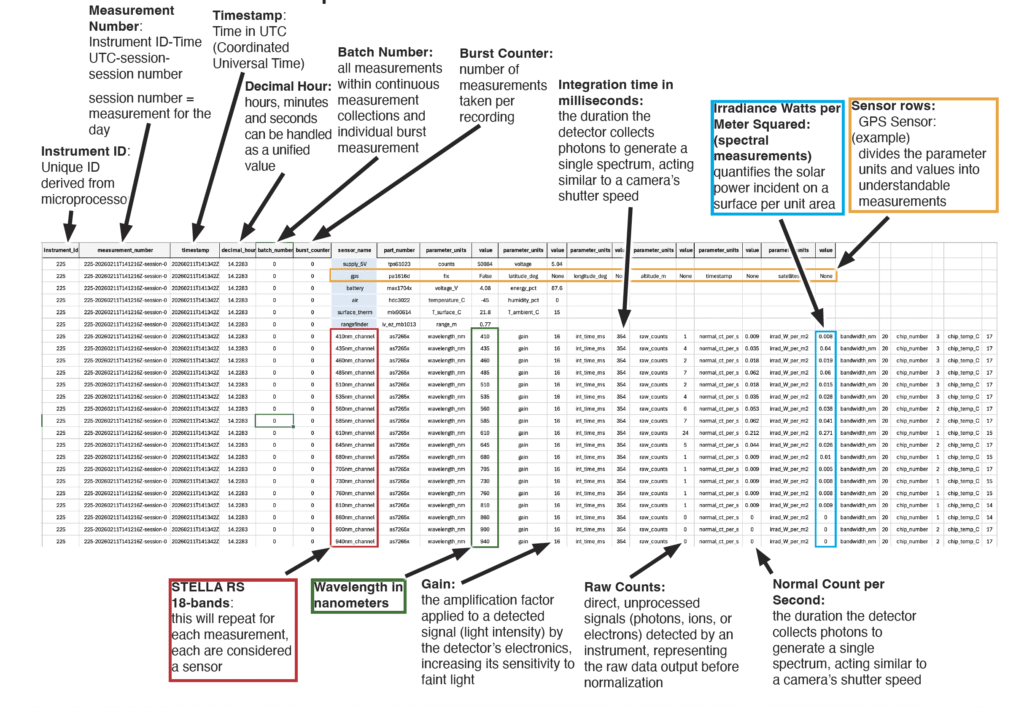
STELLA-1.2 sample data diagram
STELLA-1.2 sample data diagram - Instrument ID: Unique ID derived from microprocessor Measurement Number: Instrument ID-Time UTC-sessionsession number session number = measurement for the day Timestamp: Time in UTC (Coordinated Universal Time) Decimal Hour: hours, minutes and seconds can be handled as a unified value STELLA RS 18-bands: this will repeat for each measurement, each are considered a sensor - Sensor rows: - GPS Sensor: (example) divides the parameter units and values into understandable measurements Batch Number: all measurements within continuous measurement collections and individual burst measurement Burst Counter: number of measurements taken per recording Wavelength in nanometers Integration time in milliseconds: the duration the detector collects photons to generate a single spectrum, acting similar to a camera’s shutter speed Gain: the amplification factor applied to a detected signal (light intensity) by the detector’s electronics, increasing its sensitivity to faint light Raw Counts: direct, unprocessed signals (photons, ions, or electrons) detected by an instrument, representing the raw data output before normalization Normal Count per Second: the duration the detector collects photons to generate a single spectrum, acting similar to a camera’s shutter speed Irradiance Watts per Meter Squared: (spectral measurements) quantifies the solar power incident on a surface per unit area